Knowledgebase

knowledgebase List

We collaborate with the providers of best-of-breed technologies, services, and other streams.

image

Knowledgebase

Domains

How to Create Addon Domains on hostnasi ?

Before adding an Addon Domain name you need to point your addon domain name server to your main domain name server and you will need to wait for domain propagation. It usually takes between 12 and 24 hours.

1. Log into your cPanel account.
2. In the “Domains” section, click on “Addon Domains” Icon.
 

3. Under the “Create an Addon Domain” option you should enter your addon domain name, username, and password.
New Domain Name: Your Addon domain name like example2.com
Subdomain: It will be automatically filled in by cPanel.
Document Root: It will be automatically filled in by cPanel.
Password: Enter a new password or use the “Password Generator” button.

4. Click on the “Add Domain” button.

Domains

How to register a domain in Tanzania?

So you are a web developer and your  probably developing a website or a web service  for a client in Tanzania who at the end of the project wants a .tz domain  extension on their site this could be .co.tz , .or.tz , .ac.tz etc

The above extensions are what is know as ccTLD ( Country Code Top Level Domain ), Each country has them and in  Tanzania, to specific, this is handled by a branch of TCRA called TZNIC ( Tanzania Network Information Center ) they are the ones who monitor and issue all .tz extensions in the country.

But one thing you should know as a developer TZNIC does not issue the domains directly but through registrars such as hostnasi who are responsible for registering these domains on behalf of TZNIC  at a rate of their choosing.

To get your .tz domain you can look for a registrar of your choice for the case of speed and to get to the point we will point our how we at Hostnasi can help you solve your problem.

When you visit Hostnasi you will find a long search box here you need to write down a domain name of your choice with the extension you need ( .co.tz or .ac.tz etc) you will get a result from the platform saying if the domain name you are searching for is available or note.

Here is what you need to know about .tz extensions

.co.tz

Represents companies in Tanzania, So if you have a company the best extension will be .co.tz .

.ac.tz

Represents academy sites in Tanzania, So if you have a learning institution thus university, school etc it falls under this category.

.or.tz

Represents organizations ( charity, non-governmental) sites in Tanzania, So if you have such institution it falls under this category.


Email Hosting

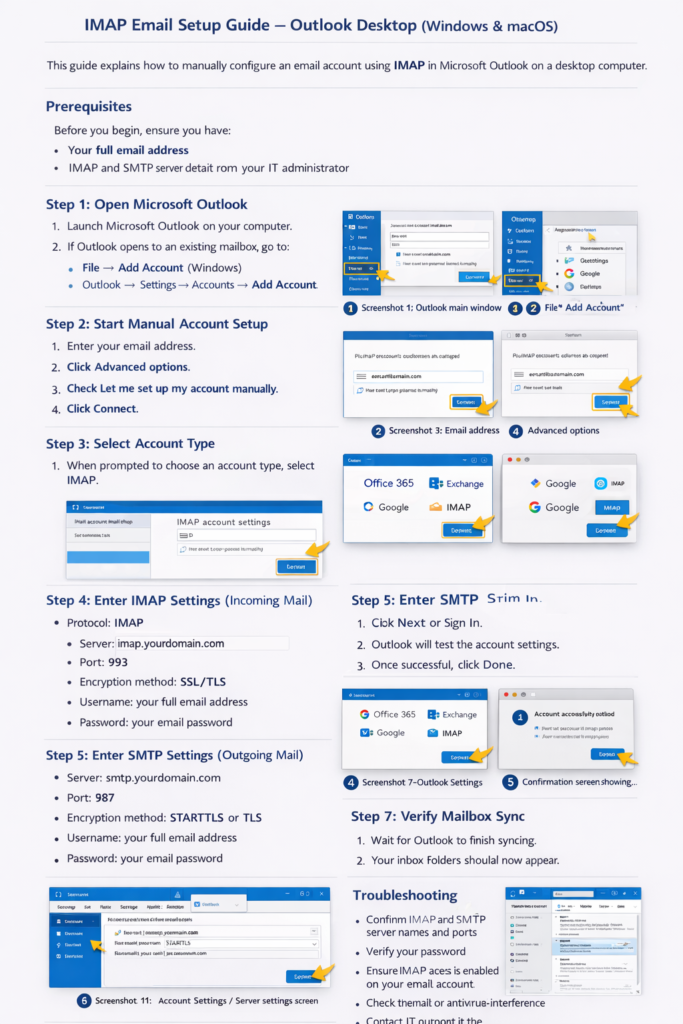
( Desktop ) IMAP Email Setup Guide – Outlook Desktop (Windows & macOS)

This guide explains how to manually configure an email account using IMAP in Microsoft Outlook on a desktop computer.

Prerequisites

Before you begin, ensure you have:

  • Your full email address
  • Your email password
  • IMAP and SMTP server details from your IT administrator

Step 1: Open Microsoft Outlook

  1. Launch Microsoft Outlook on your computer.
  2. If Outlook opens to an existing mailbox, go to:
    • File → Add Account (Windows)
    • Outlook → Settings → Accounts → Add Account (macOS)

Step 2: Start Manual Account Setup

  1. Enter your email address.
  2. Click Advanced options.
  3. Check Let me set up my account manually.
  4. Click Connect.

Step 3: Select Account Type

  1. When prompted to choose an account type, select IMAP.

Step 4: Enter IMAP Settings (Incoming Mail)

Fill in the Incoming mail details:

Protocol: IMAP
Server: imap.yourdomain.com
Port: 993
Encryption method: SSL/TLS
Username: your full email address
Password: your email password

Step 5: Enter SMTP Settings (Outgoing Mail)

Fill in the Outgoing mail details:

Server: smtp.yourdomain.com
Port: 465
Encryption method: STARTTLS or TLS
Username: your full email address
Password: your email password

Step 6: Complete Setup

  1. Click Next or Sign In.
  2. Outlook will test the account settings.
  3. Once successful, click Done.

Step 7: Verify Mailbox Sync

  1. Wait for Outlook to finish syncing.
  2. Your inbox folders should now appear.

Recommended Settings

  • Download email for the past: All
  • Use cached Exchange mode: Disabled (IMAP accounts)
  • Leave messages on server: Enabled

Troubleshooting

If setup fails:

  • Confirm IMAP and SMTP server names and ports
  • Verify your password
  • Ensure IMAP access is enabled on your email account
  • Check firewall or antivirus interference
  • Contact IT support if the issue persists support@hostnasi.co.tz
Email Hosting

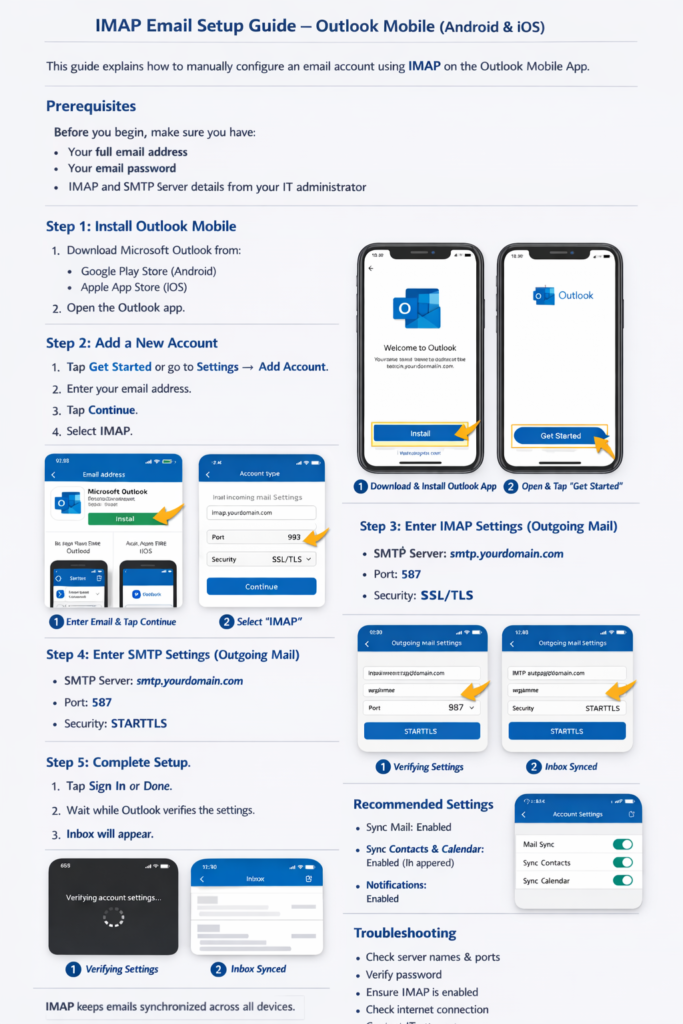
(Mobile) IMAP Email Setup Guide – Outlook Mobile (Android & iOS)

This guide explains how to manually configure an email account using IMAP on the Outlook Mobile App.

Prerequisites

Before you begin, make sure you have:

  • Your full email address
  • Your email password
  • IMAP and SMTP server details from your IT administrator

Step 1: Install Outlook Mobile

  1. Download Microsoft Outlook from:
    • Google Play Store (Android)
    • Apple App Store (iOS)
  2. Open the Outlook app.

Step 2: Add a New Account

  1. Tap Get Started (or Settings → Add Account).
  2. Enter your email address.
  3. Tap Continue.
  4. When prompted, select IMAP (or Advanced SetupIMAP).

Step 3: Enter IMAP Settings (Incoming Mail)

Fill in the following details:

Account Type: IMAP
Email Address: your full email address
Username: your full email address

IMAP Server:

  • Server: imap.yourdomain.com
  • Port: 993
  • Security Type: SSL/TLS

Step 4: Enter SMTP Settings (Outgoing Mail)

SMTP Server:

  • Server: smtp.yourdomain.com
  • Port: 465
  • Security Type: STARTTLS or TLS

Authentication:

  • Username: your full email address
  • Password: your email password

Step 5: Complete Setup

  1. Tap Sign In or Done.
  2. Wait while Outlook verifies the settings.
  3. Once successful, your mailbox will begin syncing.

Recommended Settings

  • Sync Mail: Enabled
  • Sync Contacts & Calendar: Enabled (if supported)
  • Notifications: Enabled for real-time alerts

Troubleshooting

If setup fails:

  • Double-check server names and ports
  • Ensure your password is correct
  • Confirm IMAP access is enabled on your email account
  • Verify your internet connection
  • Contact IT support if the issue persists on support@hostnasi.co.tz

Please note

  • IMAP keeps your emails synchronized across all devices.
  • Deleting an email on one device will remove it from others.

24/7 World-Class Support

Ran into trouble? Contact our Customer Success team any time via live chat or email.

Need help choosing a plan?

Need help? We're always here for you.